> ## Documentation Index
> Fetch the complete documentation index at: https://docs.infotobiz.com/llms.txt
> Use this file to discover all available pages before exploring further.
# Quick Start
> Start using our service to make each of your time block valuable
## Sign-Up
Two register methods are supported: Google authentication register, Github authentication register.
[Sign-Up Link](https://app.infotobiz.com/register?next=/dashboard)
## Sign-In
Three login methods are supported: Google authentication login, Github authentication login, email login
[Sign-In Link](https://app.infotobiz.com/login?next=/dashboard)
## Create your first project
A project is a space connected to a Notion database that can collect multiple records.
### Notion Configuration
#### Clone from the project template
Currently the platform does not support customized database define.
As this is a tool I build for my own need,the structure of the database is fine enough to make a few products of my own including blogs and curated-lists.
The project template is [here](https://storm-patella-019.notion.site/Project-Template-174228d4dc6d80c9b5dbdda98398ff4e)
Clone the template to your own workspace.
#### Get the database\_id
You can get the whole database link here
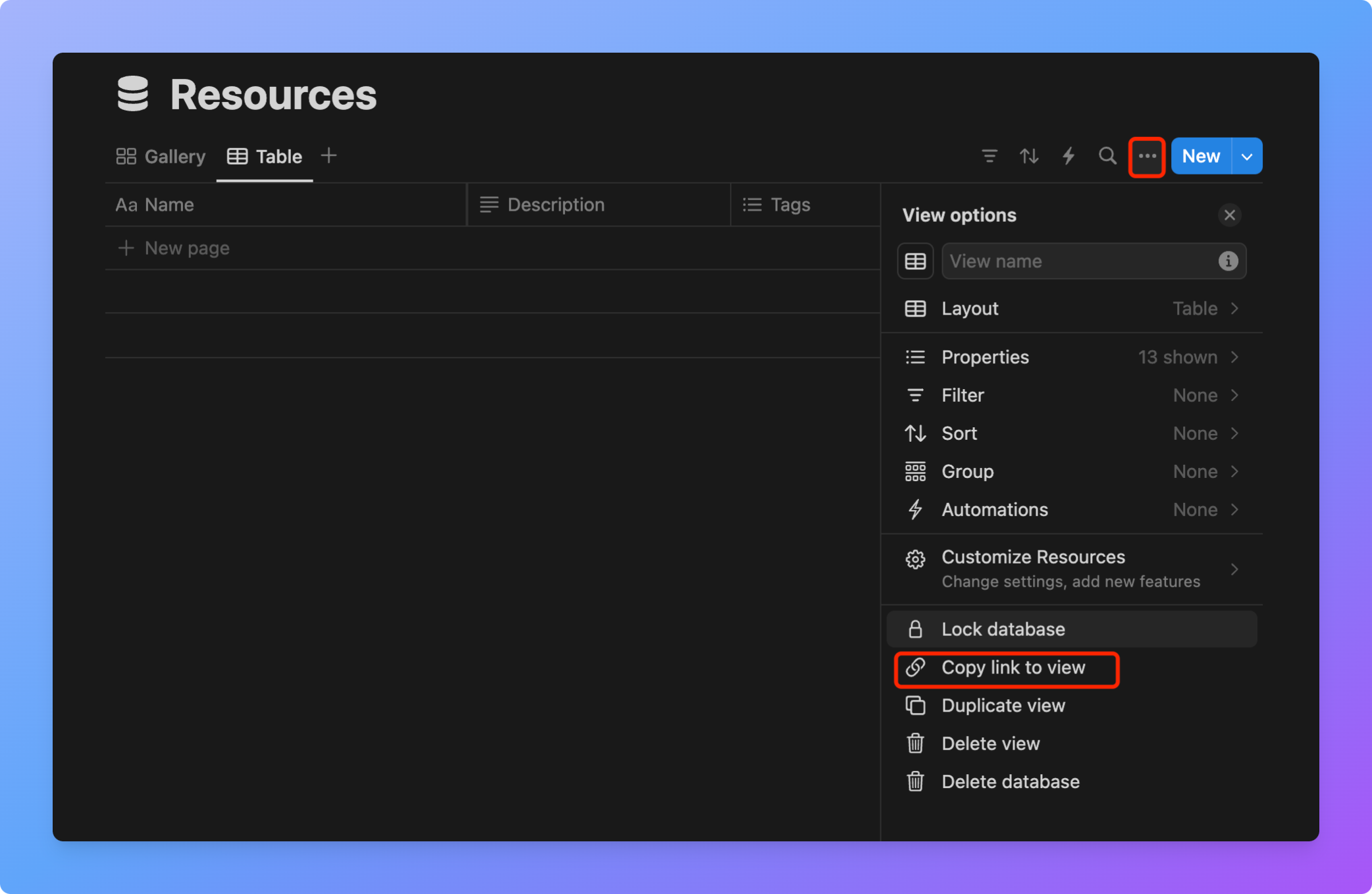 The link structure is like this.
 The "database\_id" will be used to config the project.
#### New a Integration
Integration is used to operate Notion through API.
The integration management page is [here](https://www.notion.so/profile/integrations)
The "database\_id" will be used to config the project.
#### New a Integration
Integration is used to operate Notion through API.
The integration management page is [here](https://www.notion.so/profile/integrations)
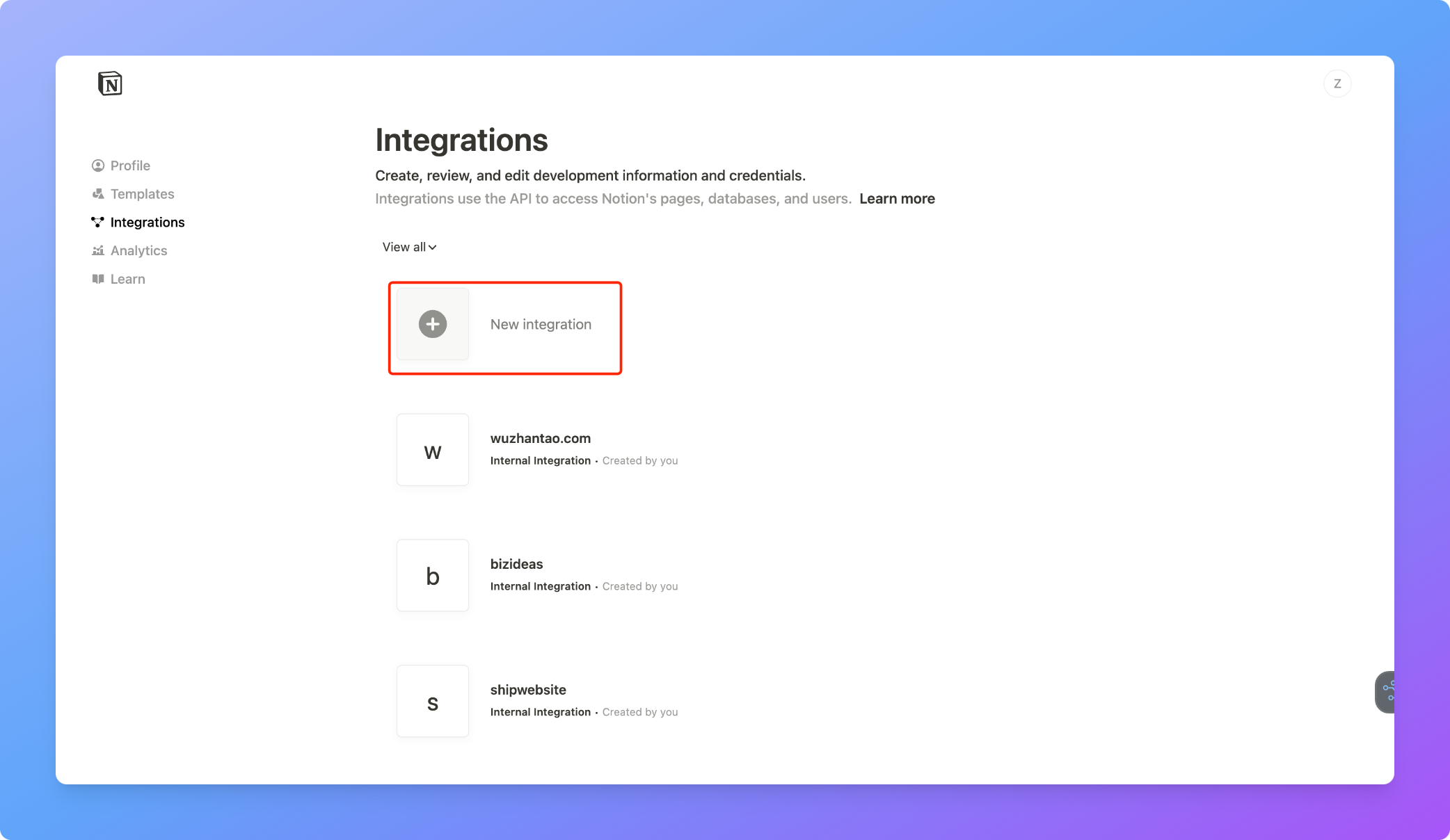 Click New Integration.
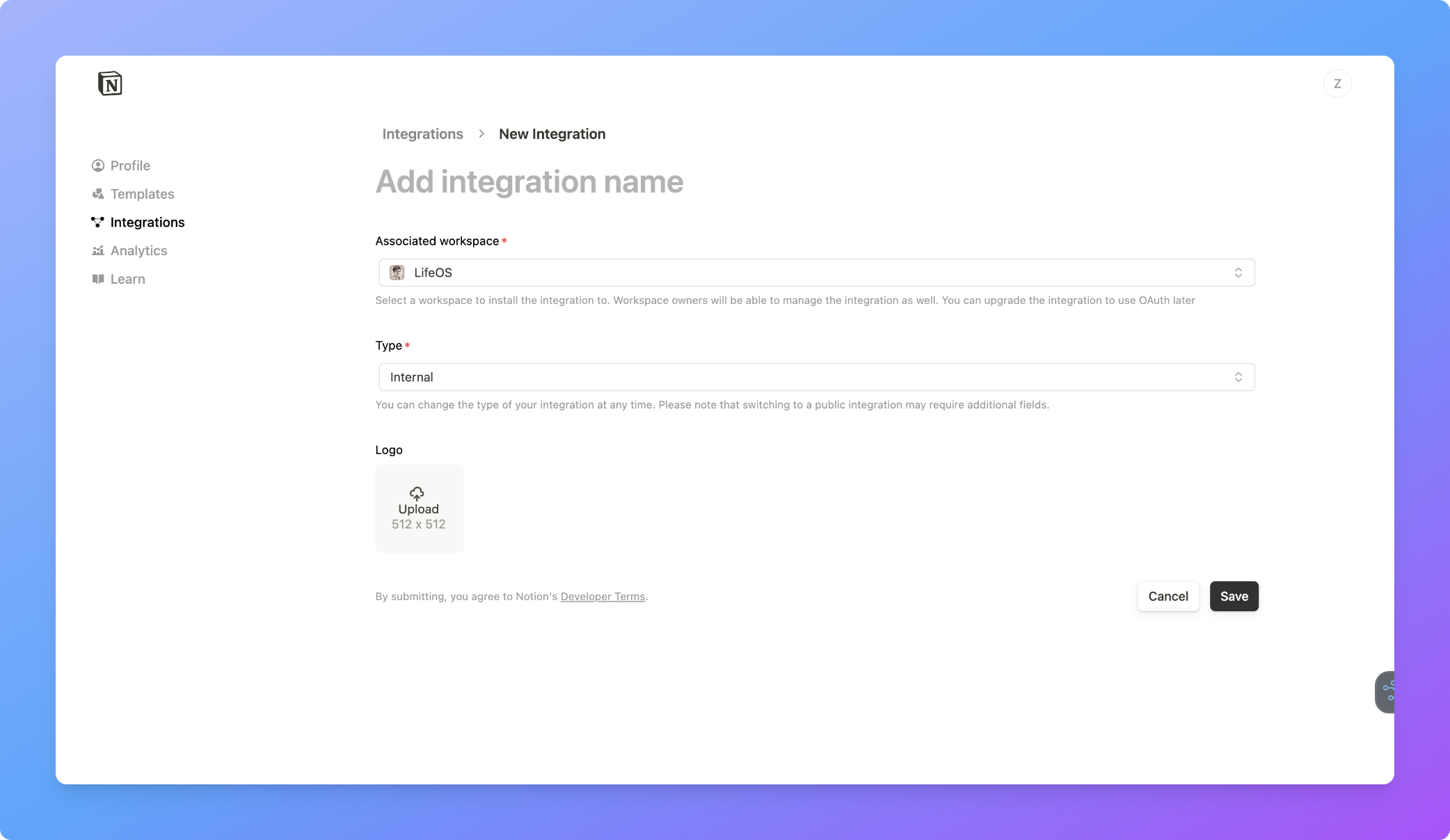 Config the integration.
It is better to name the integration based on its purpose
Choose your own workspace where your database will be built in
Internal
Click "Save"
Config the integration.
It is better to name the integration based on its purpose
Choose your own workspace where your database will be built in
Internal
Click "Save"
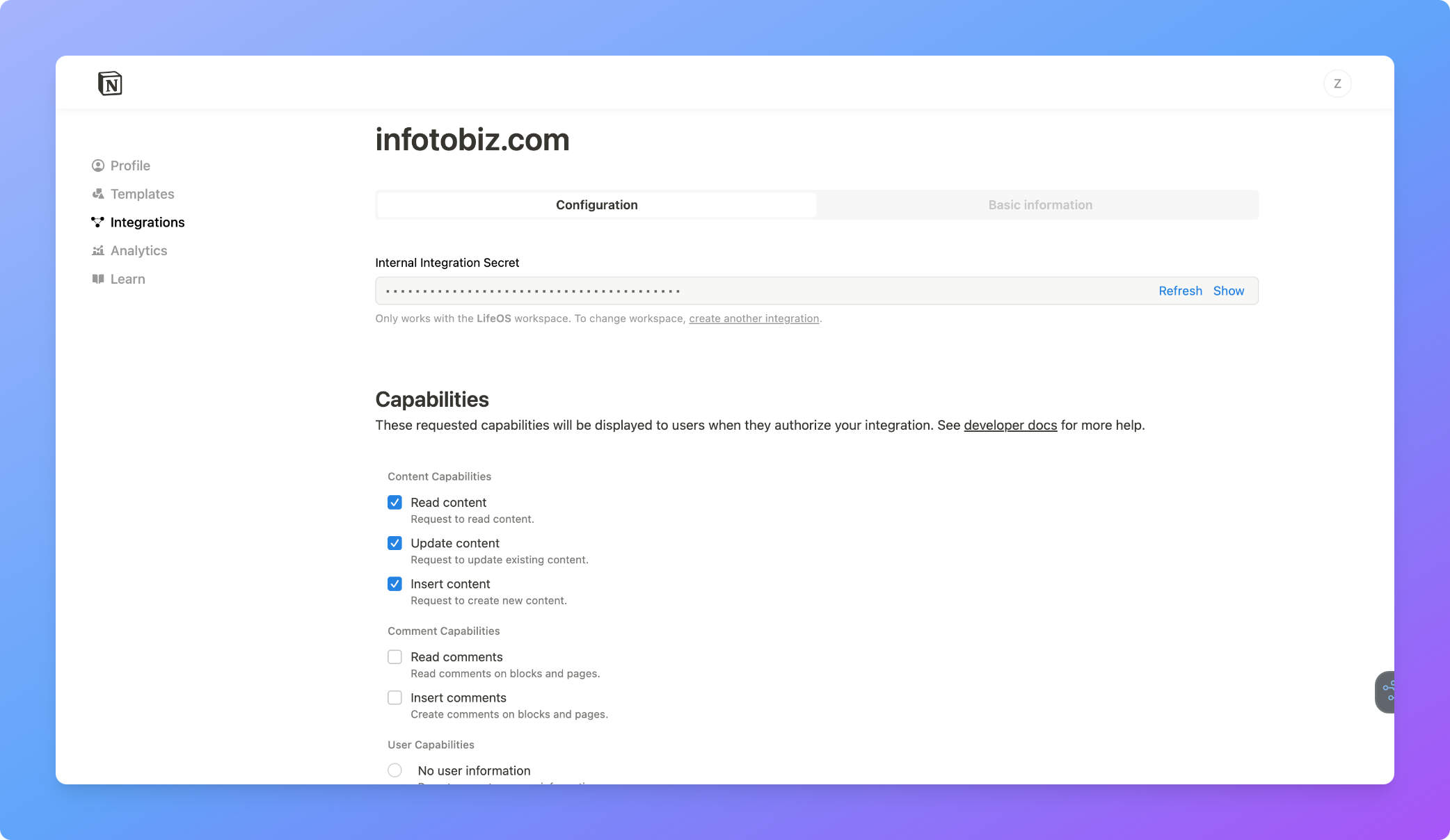 Continue...
The "Internal Integration Secret" will be used to config the project
Check these three capabilities
Click "Save"
Continue...
The "Internal Integration Secret" will be used to config the project
Check these three capabilities
Click "Save"
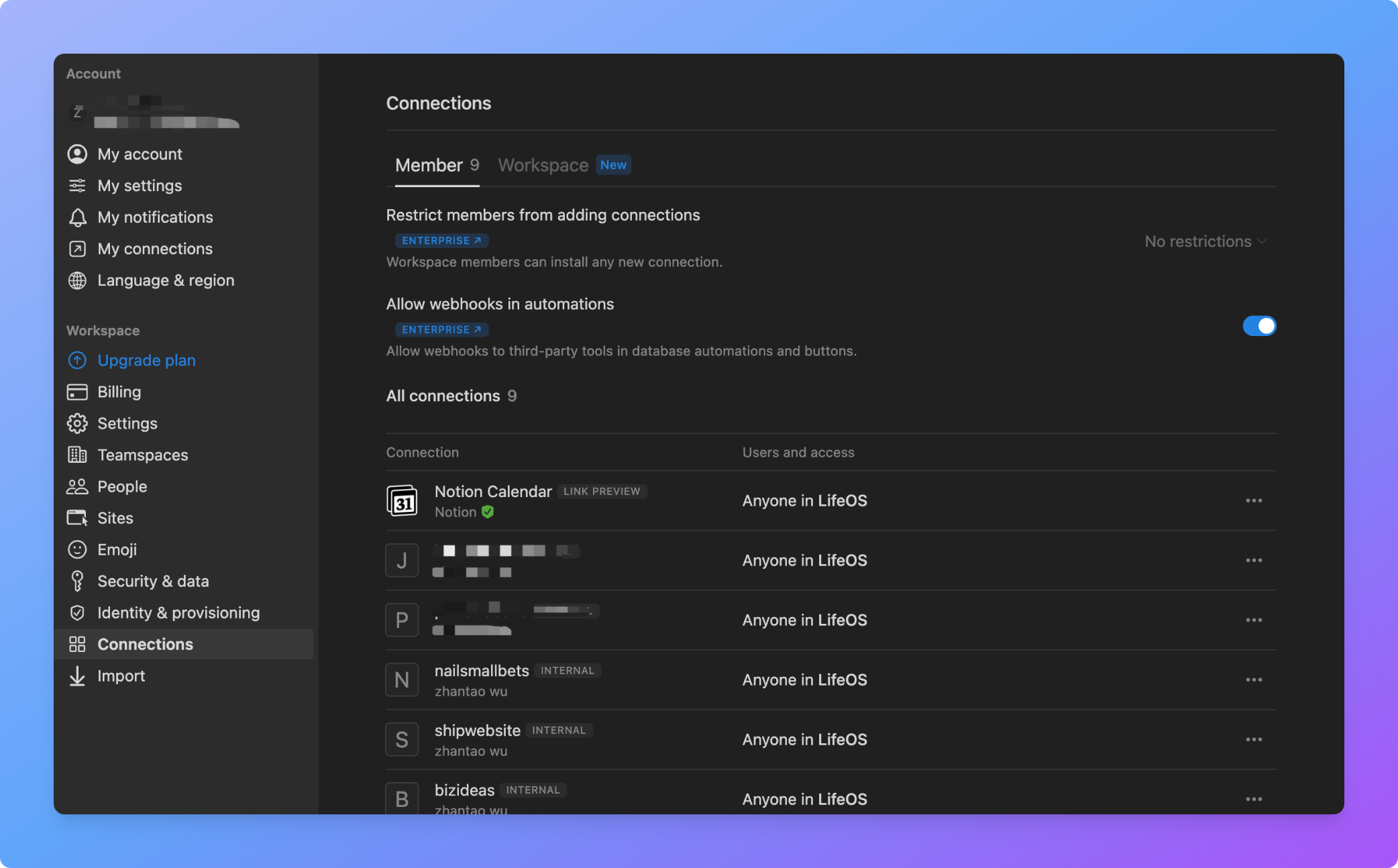 You can check the Integrations you created here.
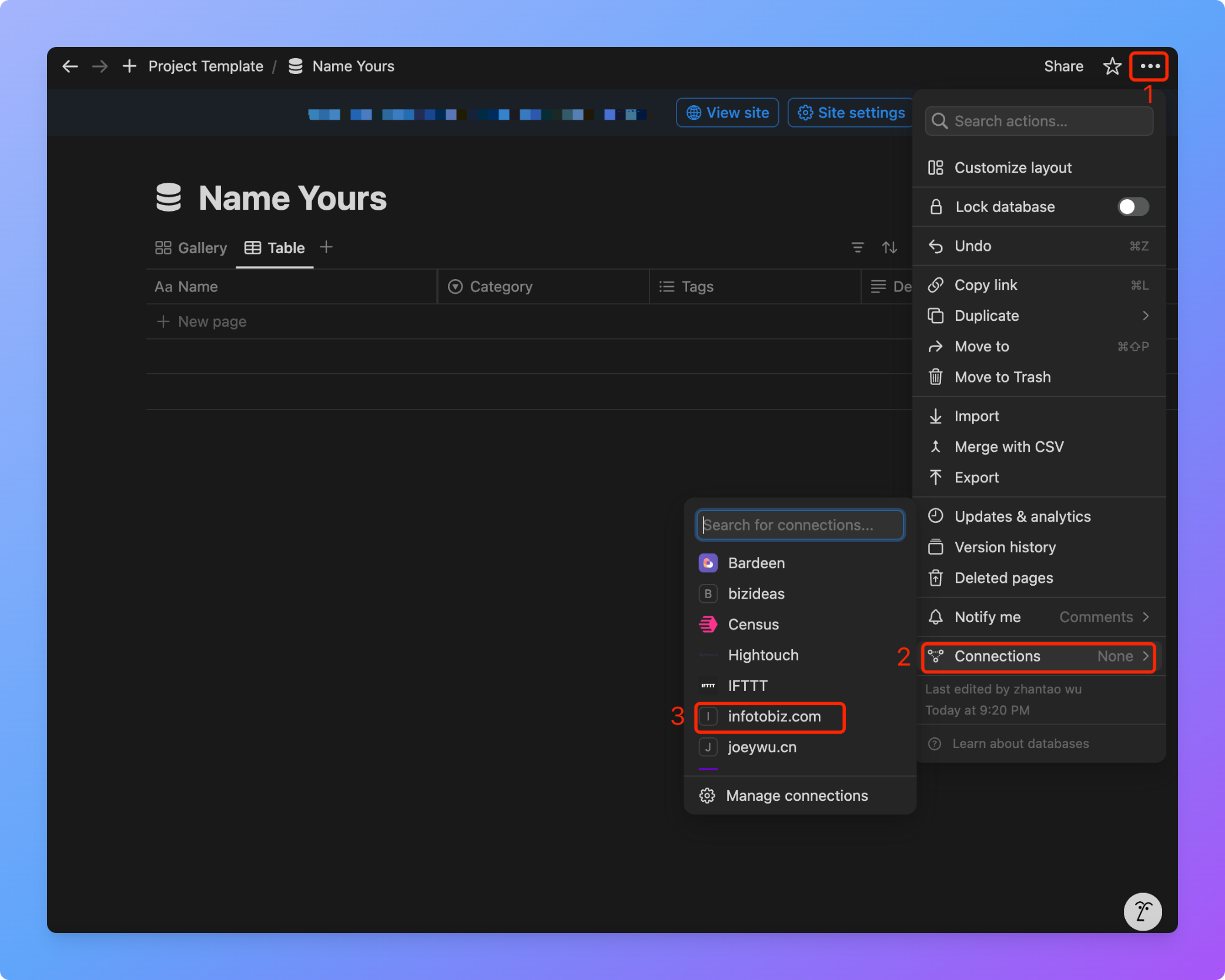
#### Connect the database to Integration
You can check the Integrations you created here.
#### Connect the database to Integration
 ### Create Project
The project's purpose should be obviously recognized from its name, with words separated by '-' or '\_'
The slug is automatically generated by the system based on the name
Get the Integration Secret from Integration section
Refer to the "Get the database\_id" section. Make sure that the IntegrationSecret and Database is connected
## Create a API key
Create a API key here: [API Keys](https://infotobiz.com/dashboard/settings/tokens)
### Create Project
The project's purpose should be obviously recognized from its name, with words separated by '-' or '\_'
The slug is automatically generated by the system based on the name
Get the Integration Secret from Integration section
Refer to the "Get the database\_id" section. Make sure that the IntegrationSecret and Database is connected
## Create a API key
Create a API key here: [API Keys](https://infotobiz.com/dashboard/settings/tokens)
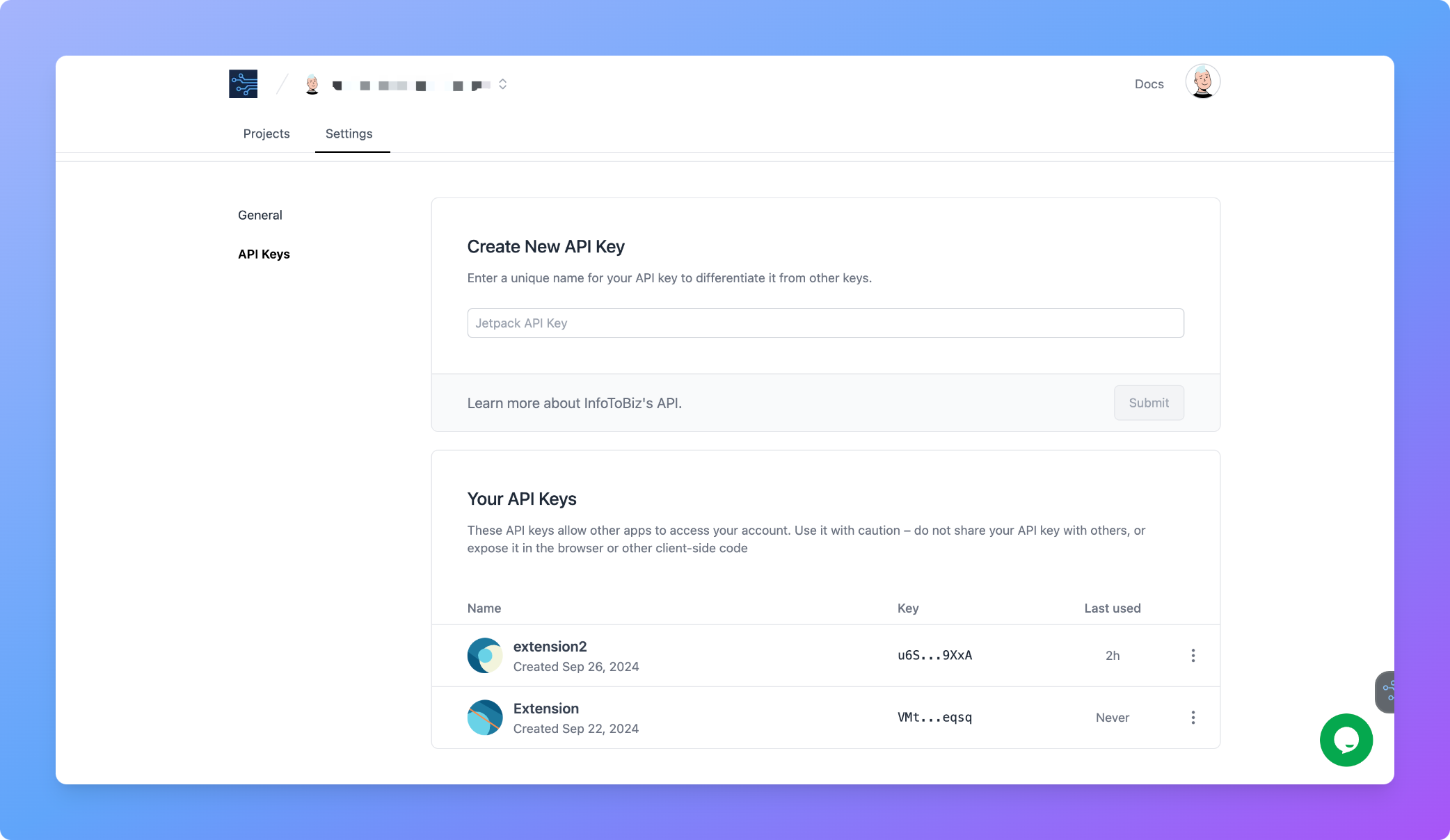 You should not put your API key in public.
## Install the browser extension
Get the extension from here:
Download for Chrome
Download for Edge
### API Key verification
Open a url, move your mouse arrow to the bottom right of the page, and the extension will pop up. Click to enter the API Key for verification
After successfully verifying the API Key, it will automatically redirect to the operation page.
The API Key will be encrypted for data security and stored locally in your browser.
You should not put your API key in public.
## Install the browser extension
Get the extension from here:
Download for Chrome
Download for Edge
### API Key verification
Open a url, move your mouse arrow to the bottom right of the page, and the extension will pop up. Click to enter the API Key for verification
After successfully verifying the API Key, it will automatically redirect to the operation page.
The API Key will be encrypted for data security and stored locally in your browser.
 ## Start your journey
Following the [user guide](https://docs.infotobiz.com/userguide) to save your first record.
## Start your journey
Following the [user guide](https://docs.infotobiz.com/userguide) to save your first record.